AI image workflow

AI Food Photography Editor

This AI food photography editor turns an uploaded dish photo and written edit direction into a polished menu, delivery-listing, or campaign image with more controlled light, table styling, and background.

Restaurant image tool

Edit food photo

Online tool
Reference image

Upload a genuine JPG, PNG, or WebP food photo with the dish clearly visible.

Prompt examples

Style
Edit food photo

Real model outputs and templates

These examples were produced with the same image workflows available in MorphPix. Open any template to start with its direction.

Input

Prompt + image

Canvas

4:3

Default style

product

01

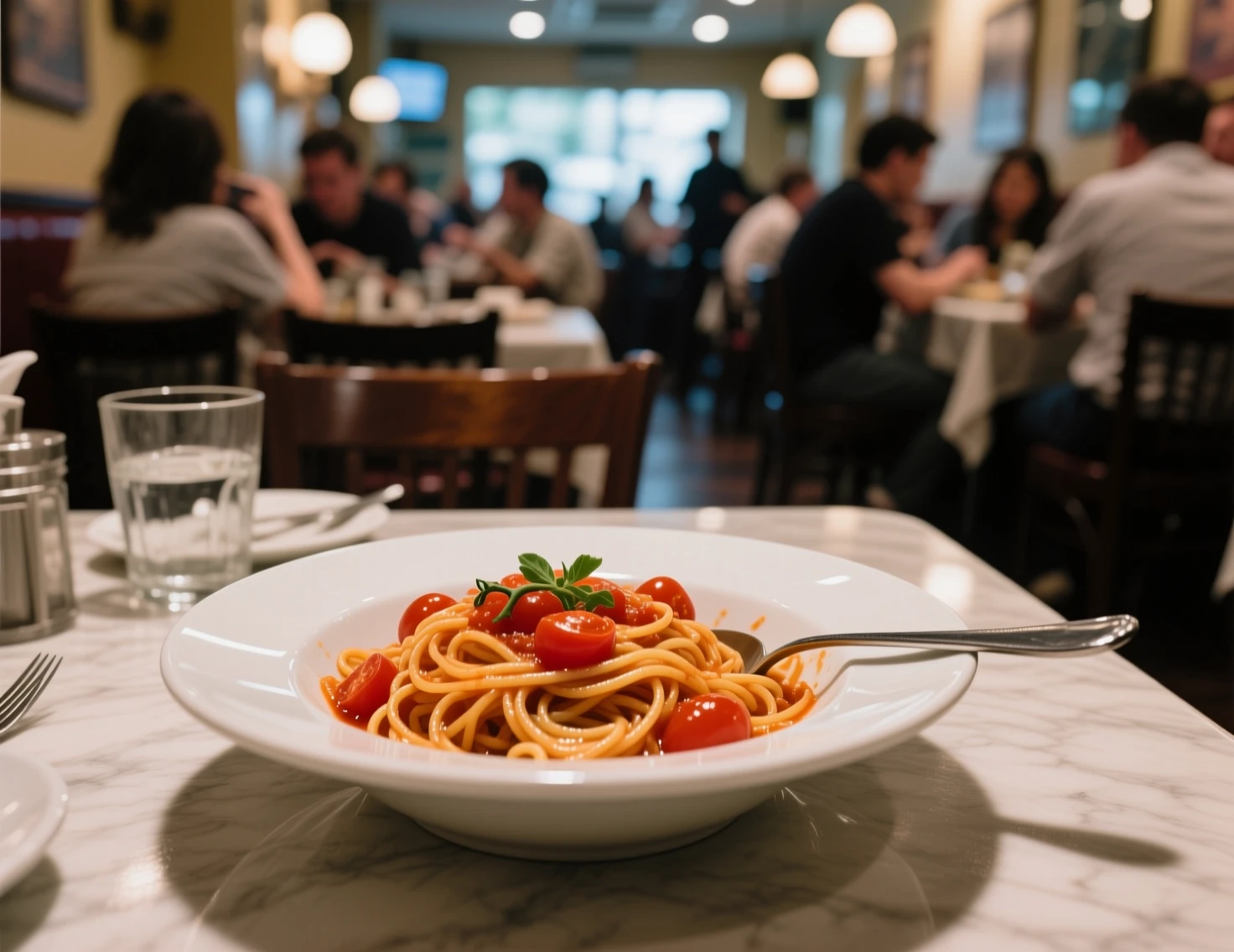
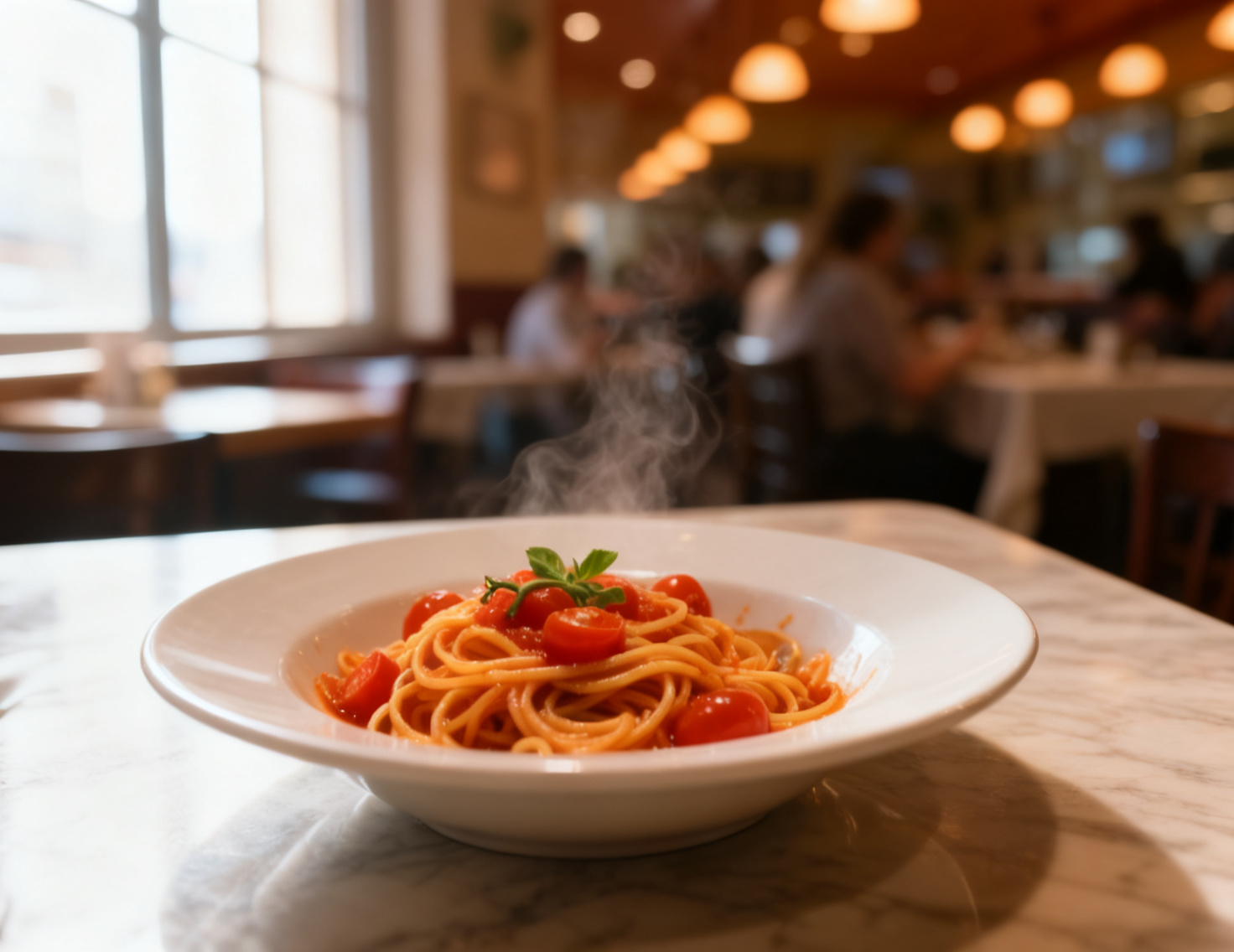
Restyle a pasta snapshot for a menu

Generated with MorphPix
Before editing, a casual phone photo of tomato pasta on a crowded restaurant table
Before
After editing, the pasta shown with warm window light, a cleaner table, and subtle steam
After

Prompt

Retouch this exact pasta photo into a polished restaurant menu image. Preserve the bowl and recognizable pasta dish, simplify the table, add soft directional window light, richer natural tomato color, subtle steam, shallow depth of field, and no text or logo.

Capability boundary: The edit preserves the dish category, not every noodle or garnish. Compare ingredients, portions, and plating against the real menu item before publishing.

Model
Seedream 4
Tool
AI Food Photography Editor
Parameters
Match input · product style · 1472 × 1136 JPG
Use in Studio

02

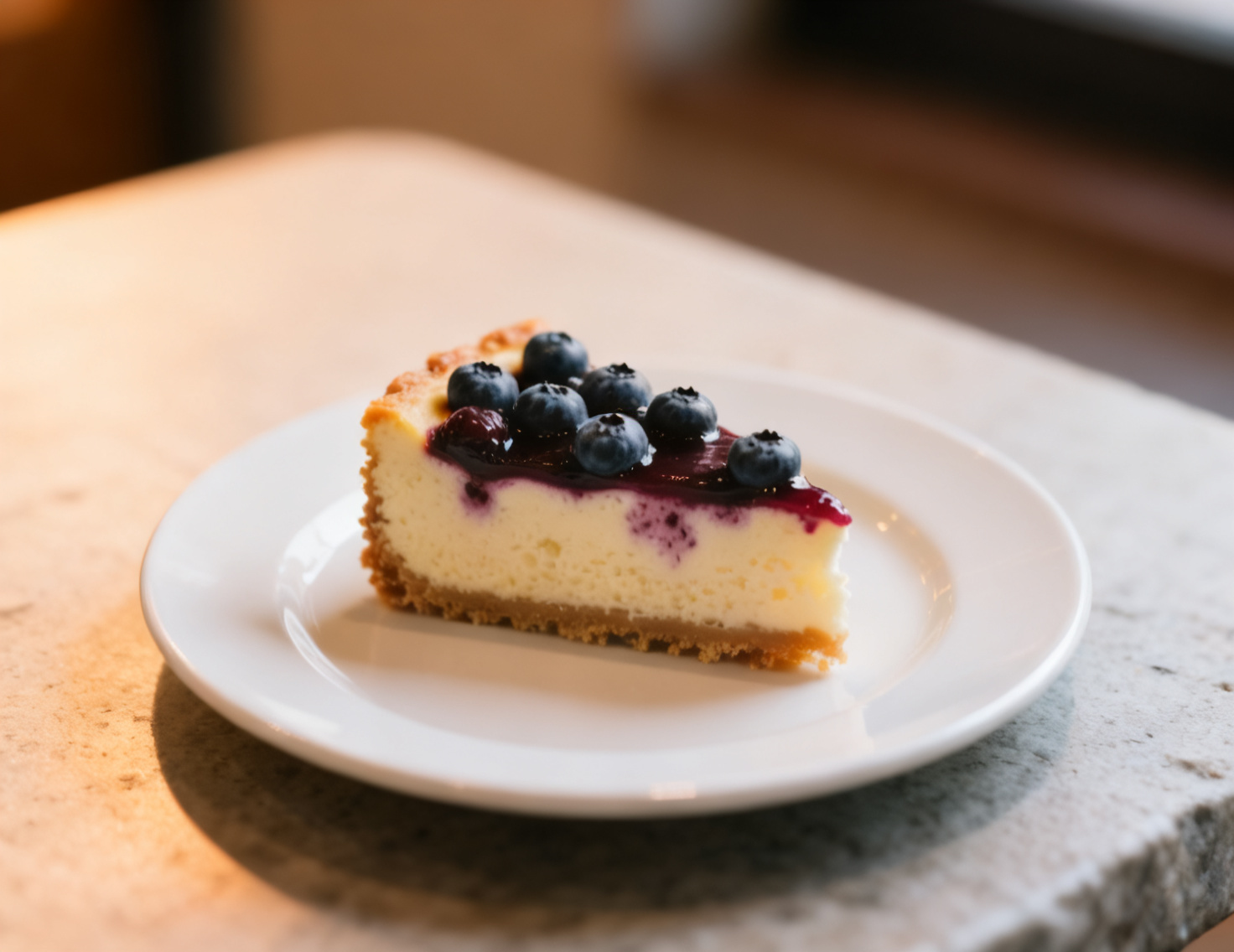
Clean up a cafe dessert photo

Generated with MorphPix
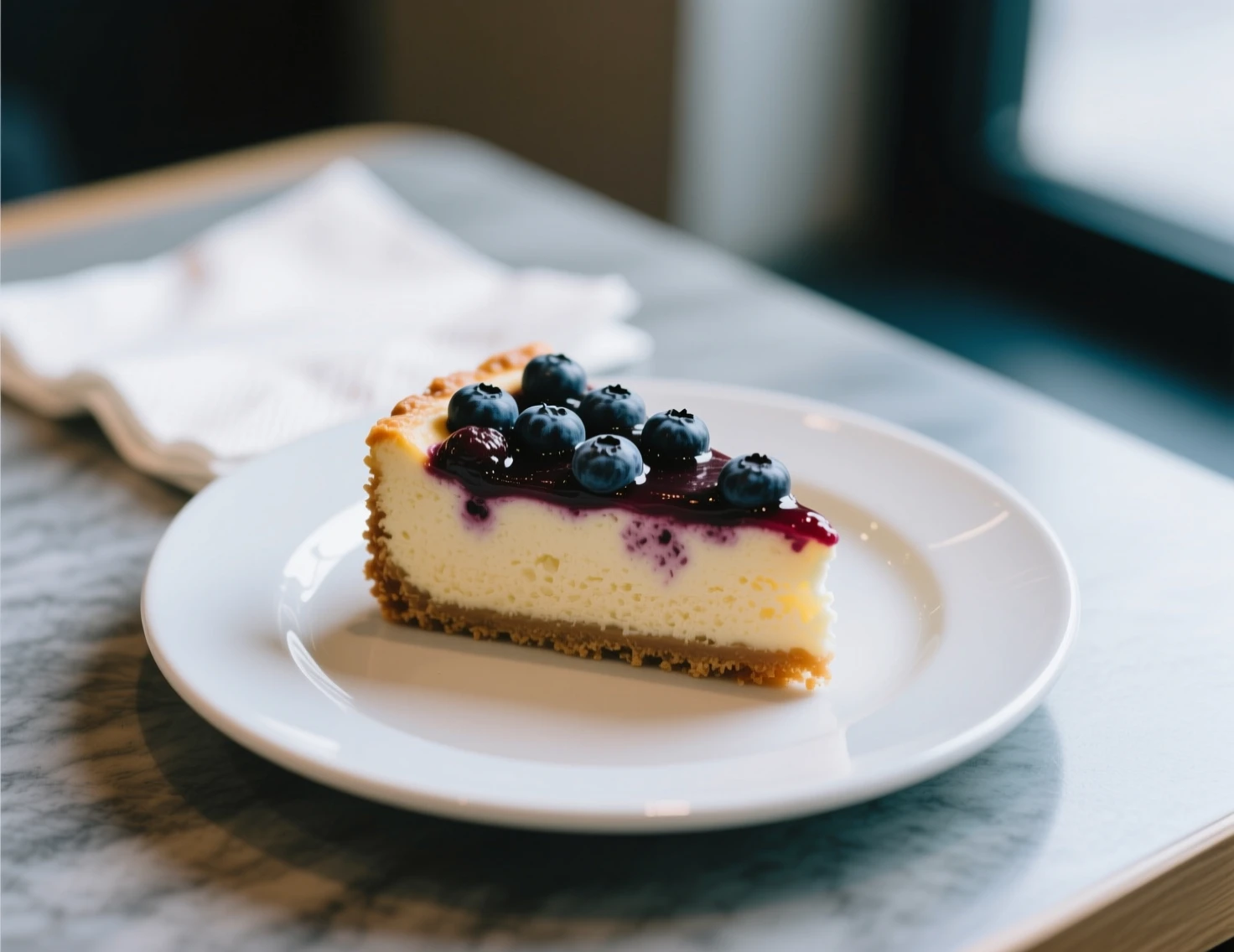
Before editing, a casual cafe photo of berry cheesecake under mixed cool indoor light
Before
After editing, the cheesecake shown on a clean stone table with warm side light
After

Prompt

Retouch this exact cheesecake photo into a polished cafe menu image. Preserve the plated dessert and berry topping, remove the distracting napkin, add warm side light, a clean stone tabletop, crisp appetizing detail, shallow depth of field, and no text or logo.

Capability boundary: The model may change berry count, crust texture, reflections, or plate geometry. Do not use the result to promise ingredients or portion details that the real dish does not have.

Model
Seedream 4
Tool
AI Food Photography Editor
Parameters
Match input · product style · 1472 × 1136 JPG
Use in Studio

Best for

Restaurant menu images

Cafe social posts

Delivery listing concepts

Food campaign variations

Improve presentation without misrepresenting the dish

Image editing can make a snapshot more polished, but generative edits may also change ingredients, portions, garnish, plate geometry, packaging, or texture.

01

Start with the real menu item

Use a clear source photo with the whole dish visible. The editor is more useful for presentation changes than for inventing an item from scratch.

02

Ask for scene-level changes

Direct the light, background, table surface, color balance, steam, and depth of field while keeping the dish request explicit.

03

Audit the result

Check ingredient count, portion size, toppings, labels, utensils, and plate shape. Do not publish a result that promises something customers will not receive.

Recommended setup

The public page keeps the basic choices visible so visitors understand what will happen before they sign in.

Input

Prompt + image

Upload a genuine JPG, PNG, or WebP food photo with the dish clearly visible.

Model stack

Seedream 4, FLUX Kontext Pro, Seedream 5.0 Pro

Food photo editing models

Canvas

4:3

Default style: product

How to edit a food photo

1

Upload a clear photo of the real dish before heavy compression or filters.

2

Describe the light, table, background, cleanup, and mood while asking the model to preserve the recognizable dish.

3

Compare the result with the source and verify ingredients, portion, plating, and packaging before publishing.

Food photo editing models

Seedream 4

ByteDance

Restaurant image tool

fast generation, edits, and product-style visual variations

FLUX Kontext Pro

Black Forest Labs

Restaurant image tool

instruction-based image edits, object changes, and background swaps

Restaurant image tool

reasoning-led generation, precise edits, text, and commercial design images

AI food photography editor FAQ

Will it preserve every ingredient exactly?

No. It can preserve the recognizable dish direction, but generative editing may change ingredients, garnish, texture, or portions. Compare the output with the real item.

Can I use it for delivery listings?

It can create cleaner listing and campaign variations, but the final image must accurately represent the dish, portion, and packaging customers receive.

How is this different from the product photo generator?

This page starts from an uploaded real food photo and performs an edit. The product photo generator starts from text and creates a new product-style concept.

Ready to run this workflow?

Open the studio with the prompt, model, style, and aspect ratio already filled in.

Edit food photo