AI image workflow

Background Remover

Upload a product, person, or object photo and create a transparent cutout for shops, ads, thumbnails, and design layouts.

Fast cutout tool

Remove background

Online tool
Reference image

Upload a JPG, PNG, or WebP image to remove the background.

Upload a JPG, PNG, or WebP image to remove the background.

Real model outputs and templates

These examples were produced with the same image workflows available in MorphPix. Open any template to start with its direction.

Input

Image upload

Canvas

1:1

Default style

product

01

Isolate a simple product

Generated with MorphPix
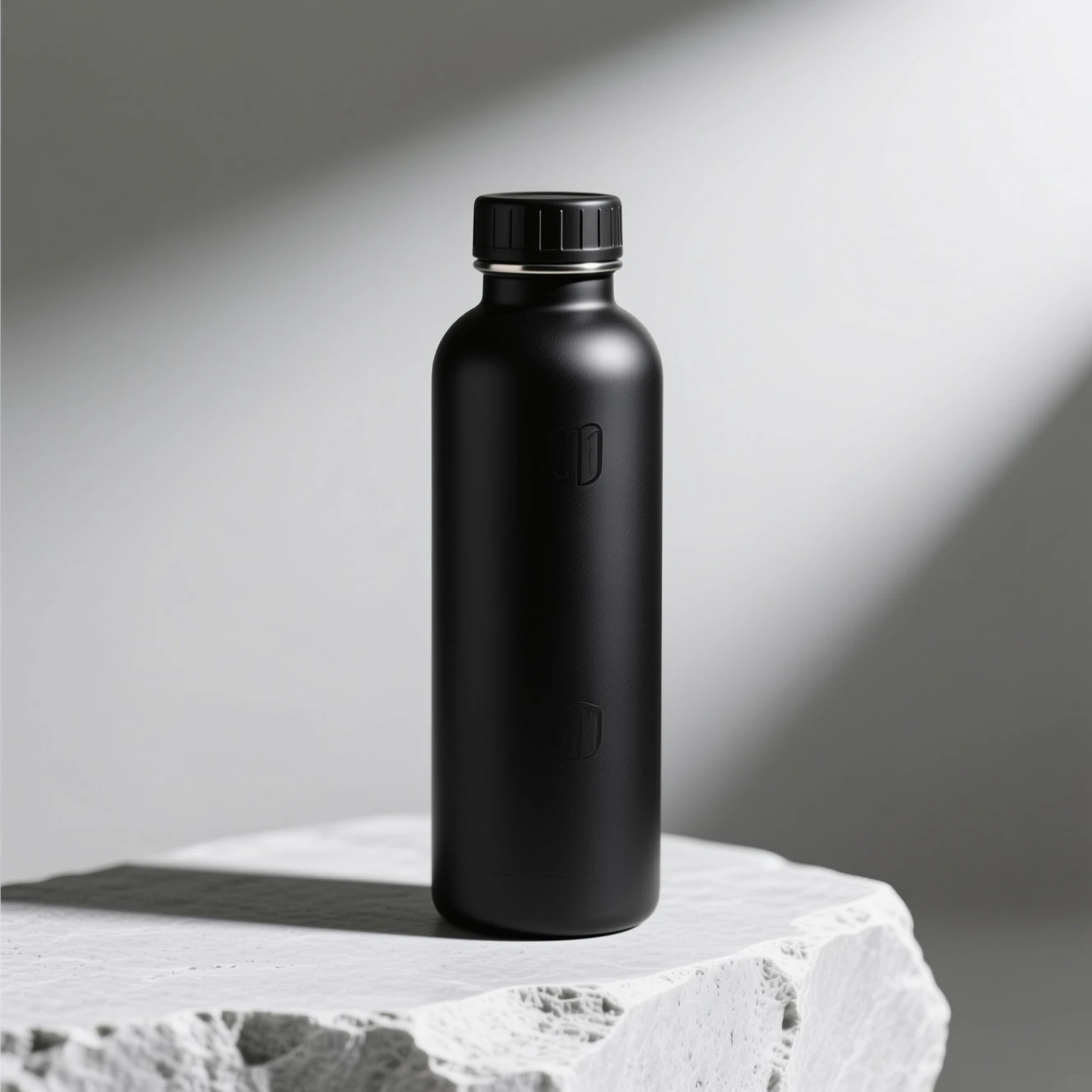
Before background removal, a matte black water bottle on a light studio background
Input
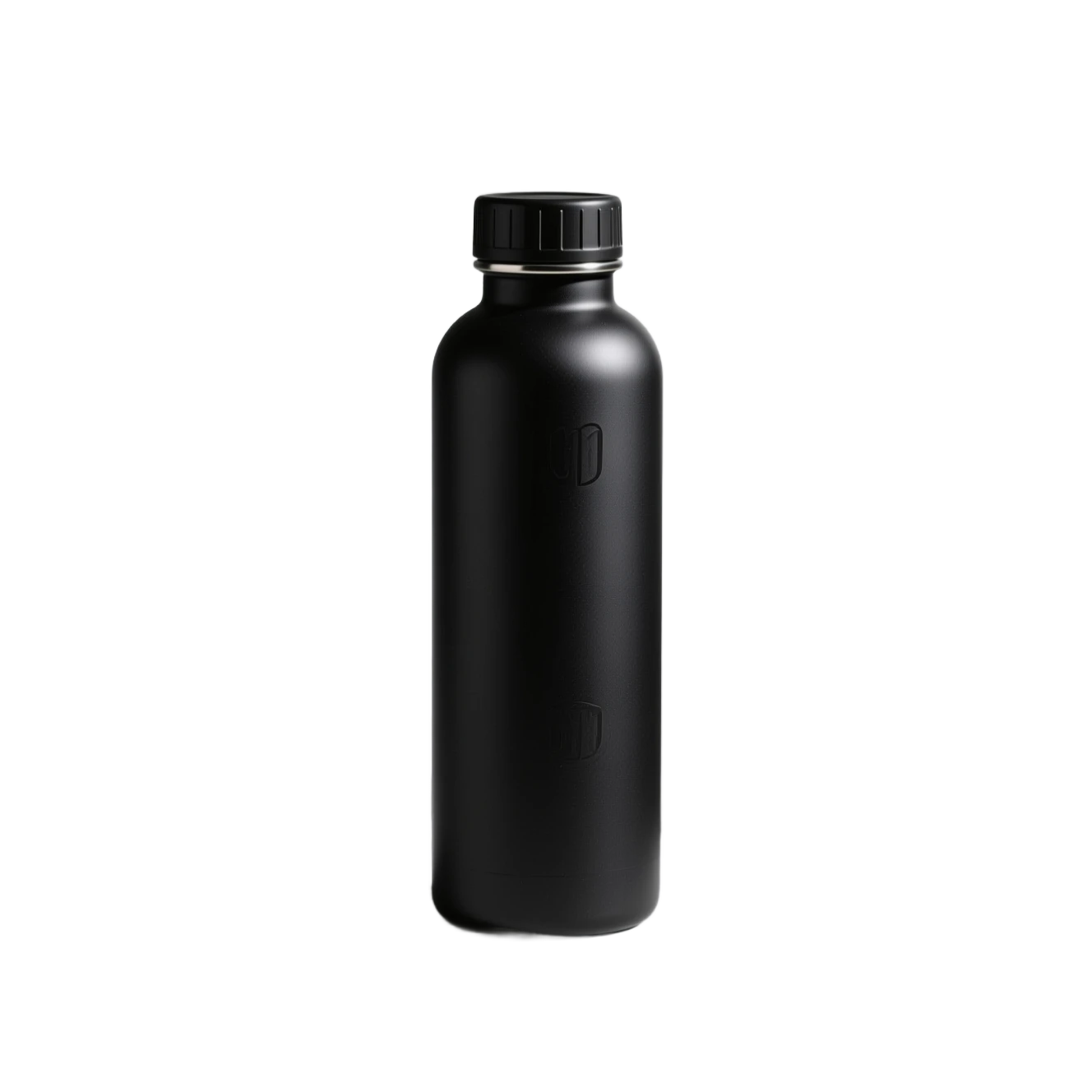
After background removal, the matte black water bottle isolated as a transparent PNG
Output

Prompt

Remove the background and return the bottle as a transparent PNG.

Capability boundary: Simple hard edges usually separate cleanly, but reflective rims and soft shadows may still need inspection.

Model
Background Remover
Tool
Background Remover
Use in Studio

02

Handle fine leaves and stems

Generated with MorphPix
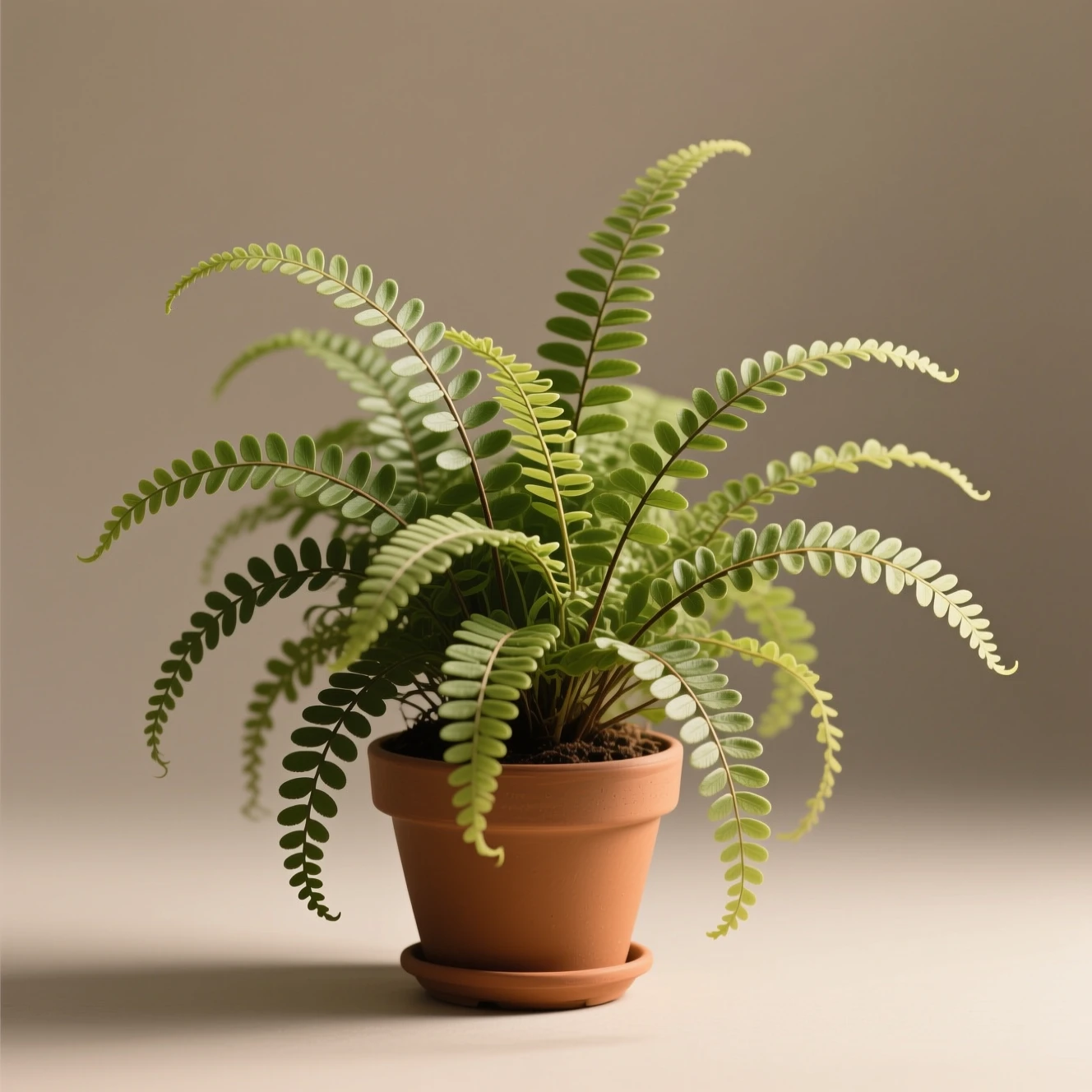
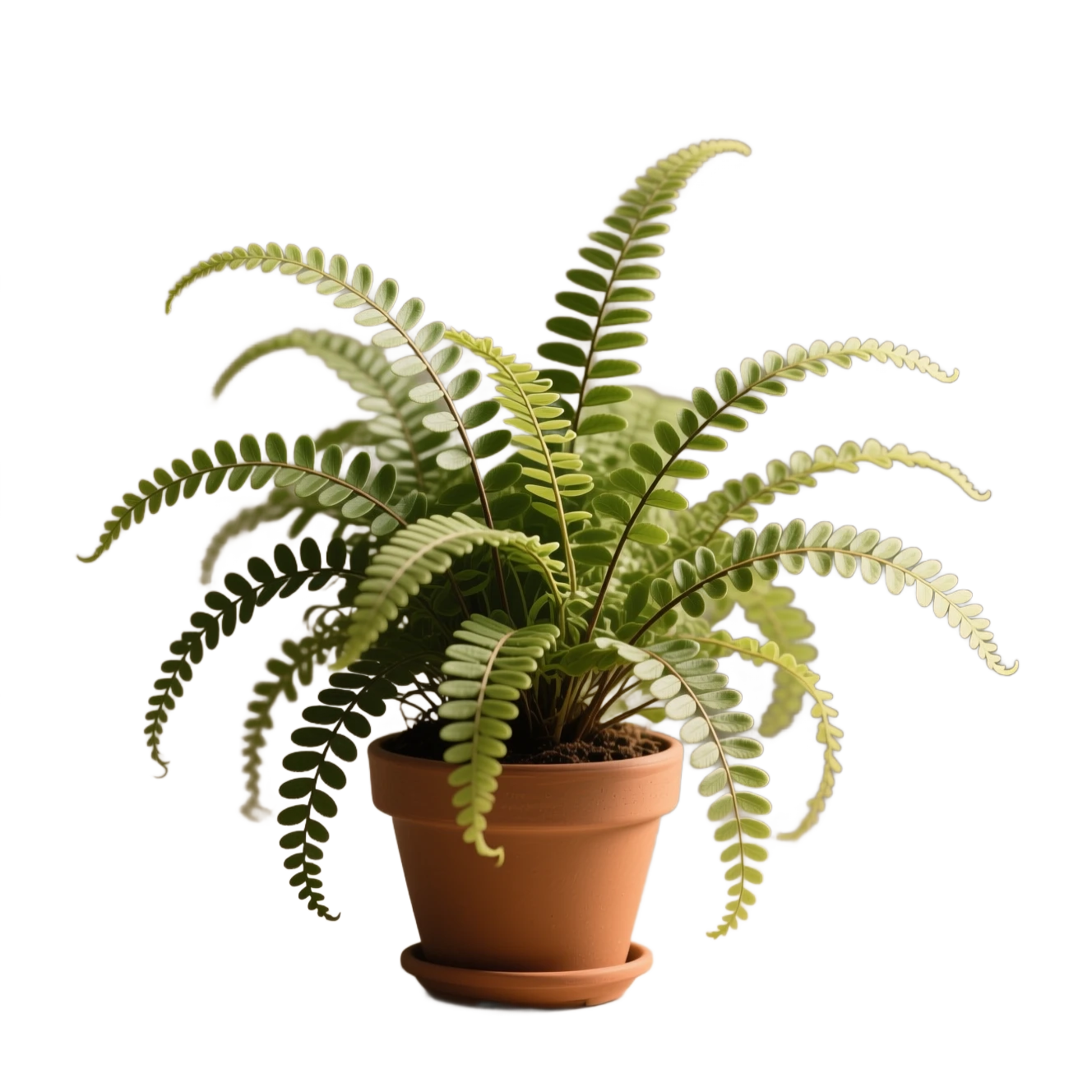
Before background removal, a potted fern with many fine leaves on a warm gray background
Input
After background removal, the potted fern and its fine leaves isolated on transparency
Output

Prompt

Remove the warm gray background while retaining the fern's fine leaves and stems in a transparent PNG.

Capability boundary: Fine foliage is a harder case: tiny gaps, translucent edges, and hair-like stems can be softened or omitted.

Model
Background Remover
Tool
Background Remover
Use in Studio

Best for

Ecommerce product cutouts

Profile images

Marketplace listings

Transparent assets for designs

Prepare cleaner transparent cutouts

Background removal is automatic, but the source image still determines how well fine edges and transparent materials can be separated.

01

Choose visible edges

Use an image where the subject is fully visible and reasonably distinct from the background, especially around hair and product corners.

02

Inspect difficult materials

Glass, reflections, motion blur, smoke, and fine hair can need extra review because foreground and background pixels overlap.

03

Continue the workflow

Use the transparent result in a design, or move to Product Background Generator to place a real product into a new scene.

Recommended setup

The public page keeps the basic choices visible so visitors understand what will happen before they sign in.

Input

Image upload

Upload a JPG, PNG, or WebP image to remove the background.

Model stack

Background Remover

AI model

Canvas

1:1

Default style: product

How it works

1

Upload a clear image with one main subject.

2

Run background removal and inspect the subject edges.

3

Download the transparent PNG or continue in the product background workflow.

AI model

Fast cutout tool

fast subject cutouts and transparent-background assets

Background remover FAQ

Does this need a prompt?

No. Background removal is primarily upload-based; the note field is for future workflow context.

What output does the background remover create?

The background removal model returns a PNG with transparency so the cutout can be reused in listings, ads, and layouts.

Which image formats can I upload?

You can upload genuine JPG, PNG, or WebP images. MorphPix validates the file before sending it for processing.

Are uploaded and generated images public?

No. Completed account outputs are kept in private storage and opened through time-limited signed links.

Ready to run this workflow?

Open the studio with the prompt, model, style, and aspect ratio already filled in.

Remove background