AI image workflow

AI Image Upscaler

Enlarge an image 2x and improve its apparent sharpness before publishing it on storefronts, social channels, and landing pages.

Enhance and sharpen

Upscale image

Online tool
Reference image

Upload a small or soft image to upscale.

Upload a small or soft image to upscale.

Real model outputs and templates

These examples were produced with the same image workflows available in MorphPix. Open any template to start with its direction.

Input

Image upload

Canvas

1:1

Default style

minimal

01

Improve textile edge definition

Generated with MorphPix
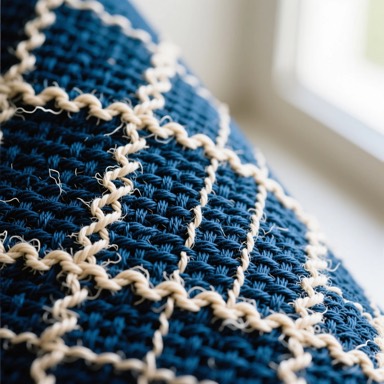
Original 384 by 384 pixel close-up of blue woven textile
Input384 × 384
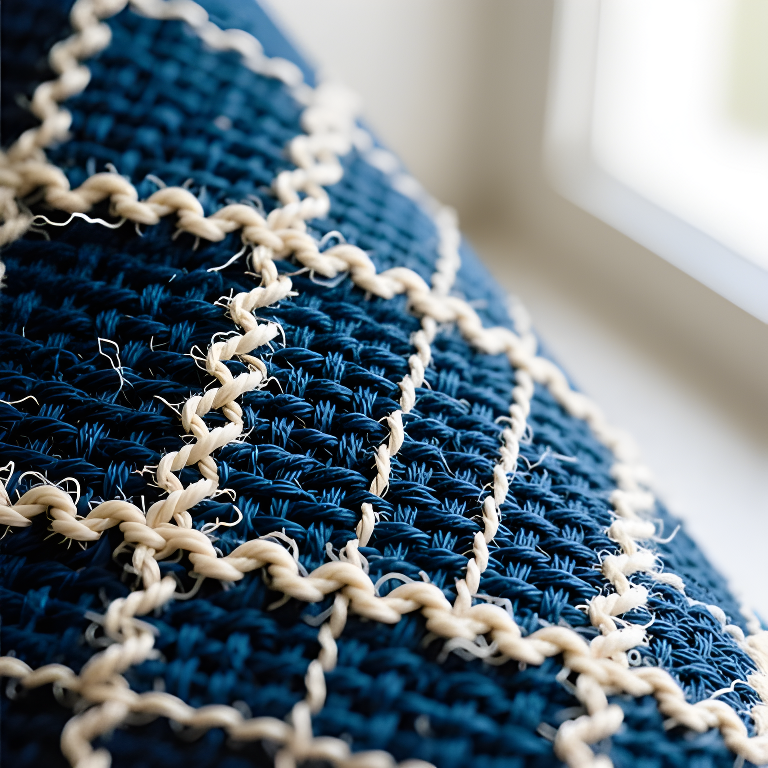
Two-times upscaled 768 by 768 pixel blue textile with sharper fibers
Output768 × 768

Same-area detail

Original 384 by 384 pixel close-up of blue woven textile — Same-area detail
Input
Two-times upscaled 768 by 768 pixel blue textile with sharper fibers — Same-area detail
Output

Prompt

Upscale the image 2x with face enhancement disabled.

Capability boundary: The result looks sharper, but individual fibers are model-estimated details rather than recovered ground truth.

Model
Real-ESRGAN
Tool
AI Image Upscaler
Parameters
2x · 384 × 384 → 768 × 768
Use in Studio

02

Clarify weathered paint and hardware

Generated with MorphPix
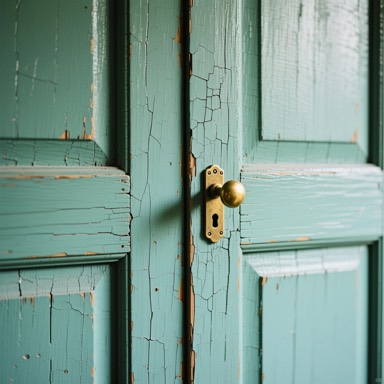
Original 384 by 384 pixel photograph of a weathered green door and brass handle
Input384 × 384
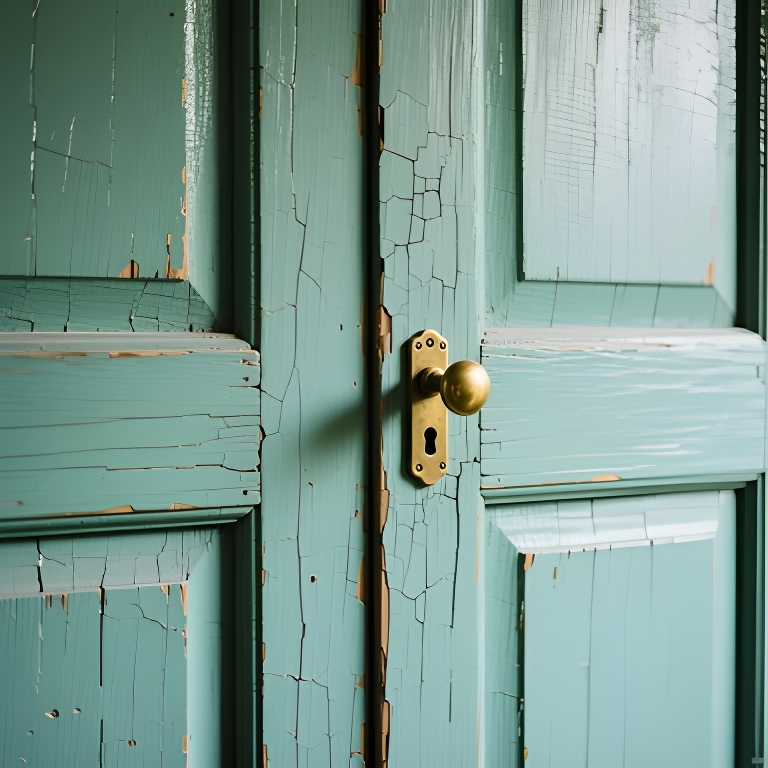
Two-times upscaled 768 by 768 pixel green door with clearer cracked paint and hardware
Output768 × 768

Same-area detail

Original 384 by 384 pixel photograph of a weathered green door and brass handle — Same-area detail
Input
Two-times upscaled 768 by 768 pixel green door with clearer cracked paint and hardware — Same-area detail
Output

Prompt

Upscale the image 2x with face enhancement disabled.

Capability boundary: Upscaling improves edge definition and resolution, but it cannot reveal authentic wear patterns absent from the input.

Model
Real-ESRGAN
Tool
AI Image Upscaler
Parameters
2x · 384 × 384 → 768 × 768
Use in Studio

Best for

Generated image enhancement

Product photo cleanup

Profile picture sharpening

Old asset refreshes

Know what image upscaling can improve

Upscaling increases pixel dimensions and can improve perceived detail, but it cannot recreate accurate information that is absent from the source.

01

Start before heavy compression

Use the best source available. Repeatedly saved screenshots and messaging-app copies already contain artifacts that may become more visible.

02

Review text and faces

Small lettering, logos, eyes, and skin texture deserve a close check because sharpening may invent or exaggerate edges.

03

Use the result at its real size

A 2x output is useful for larger placements, but judge it at the intended display size instead of relying only on a zoomed preview.

Recommended setup

The public page keeps the basic choices visible so visitors understand what will happen before they sign in.

Input

Image upload

Upload a small or soft image to upscale.

Model stack

Real-ESRGAN

AI model

Canvas

1:1

Default style: minimal

How it works

1

Upload a genuine JPG, PNG, or WebP source image.

2

Run the 2x Real-ESRGAN enhancement.

3

Compare edges and texture, then download the sharper result.

AI model

Real-ESRGAN

NightmareAI

Enhance and sharpen

image upscaling, sharpening, and face-aware enhancement

AI image upscaler FAQ

Can it fix every blurry image?

Upscaling can improve many images, but it cannot recover details that are completely missing from the source.

Should generated images be upscaled?

Often yes. Upscaling is useful before final downloads, ads, and marketplace uploads.

How much larger will the image become?

The current Real-ESRGAN workflow uses a 2x scale, doubling both width and height.

Which image files are accepted?

MorphPix accepts genuine JPG, PNG, and WebP images and checks file integrity and dimensions before processing.

Ready to run this workflow?

Open the studio with the prompt, model, style, and aspect ratio already filled in.

Upscale image