AI image workflow

AI Image Generator

Turn a text prompt into a finished visual for websites, campaigns, product concepts, and social posts, then keep the result in one private studio history.

Core image tool

Generate image

Online tool

Prompt examples

Style
Generate image

Real model outputs and templates

These examples were produced with the same image workflows available in MorphPix. Open any template to start with its direction.

Input

Prompt only

Canvas

1:1

Default style

cinematic

01

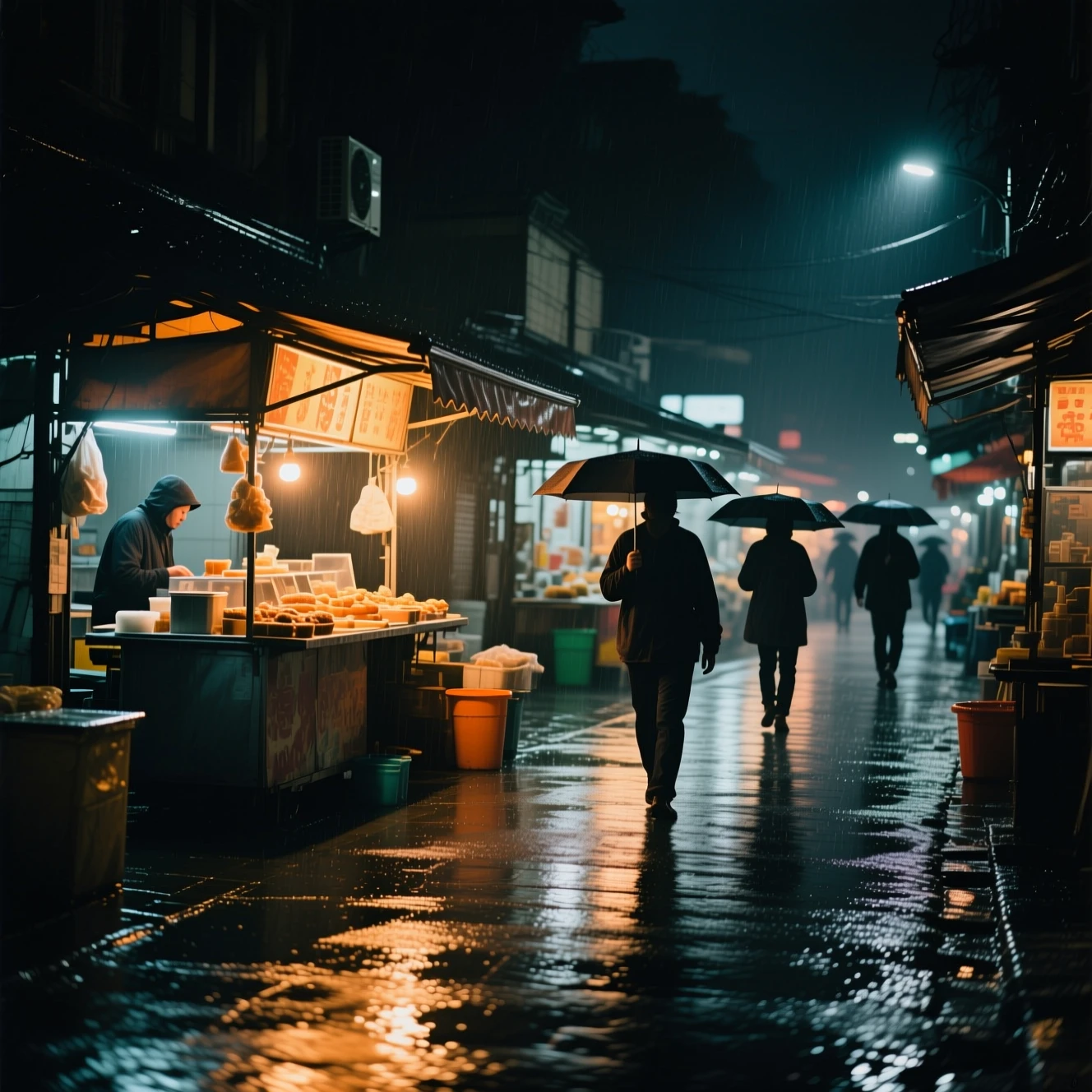
Rainy night market photography

Generated with MorphPix

Input

Documentary-style photograph of a small night food market after rain, warm stall lights reflecting on wet pavement, a few anonymous people walking with umbrellas, natural candid composition, realistic photography, no readable text, no logos

Prompt

Documentary-style AI image of a rainy night food market with umbrellas and reflections
Output

Capability boundary: Small background signs may be unreadable or invented; inspect text-bearing areas before commercial use.

Model
Qwen Image
Tool
AI Image Generator
Use in Studio

02

Paper-cut observatory illustration

Generated with MorphPix

Input

Layered paper-cut illustration of a tiny mountain observatory under a deep blue starry sky, hand-crafted paper texture, limited navy coral and cream palette, editorial art print, no text, no logo

Prompt
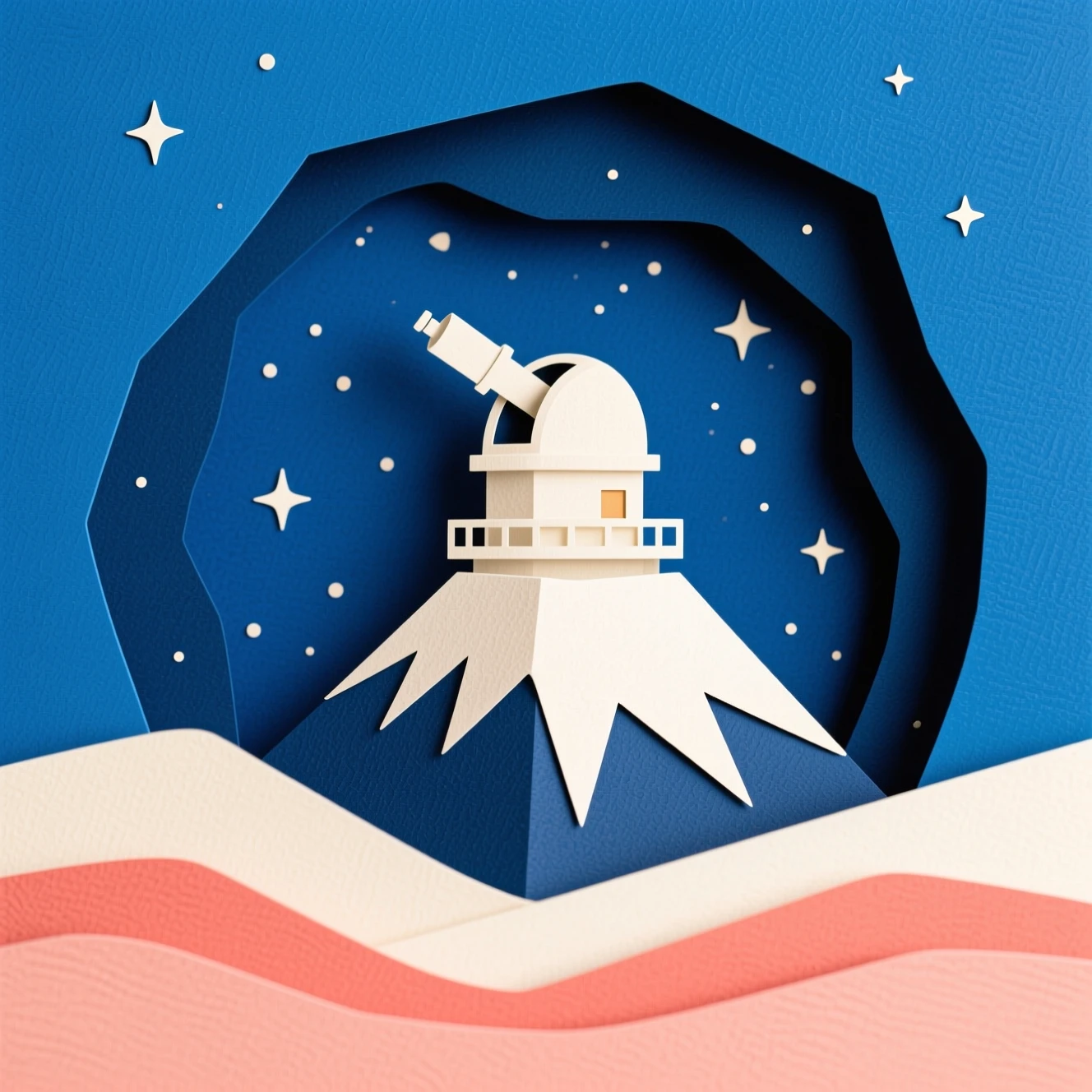
Layered paper-cut AI illustration of a mountain observatory beneath a starry sky
Output

Capability boundary: The model interprets material, layering, and color direction rather than reproducing a fixed illustration style exactly.

Model
Qwen Image
Tool
AI Image Generator
Use in Studio

03

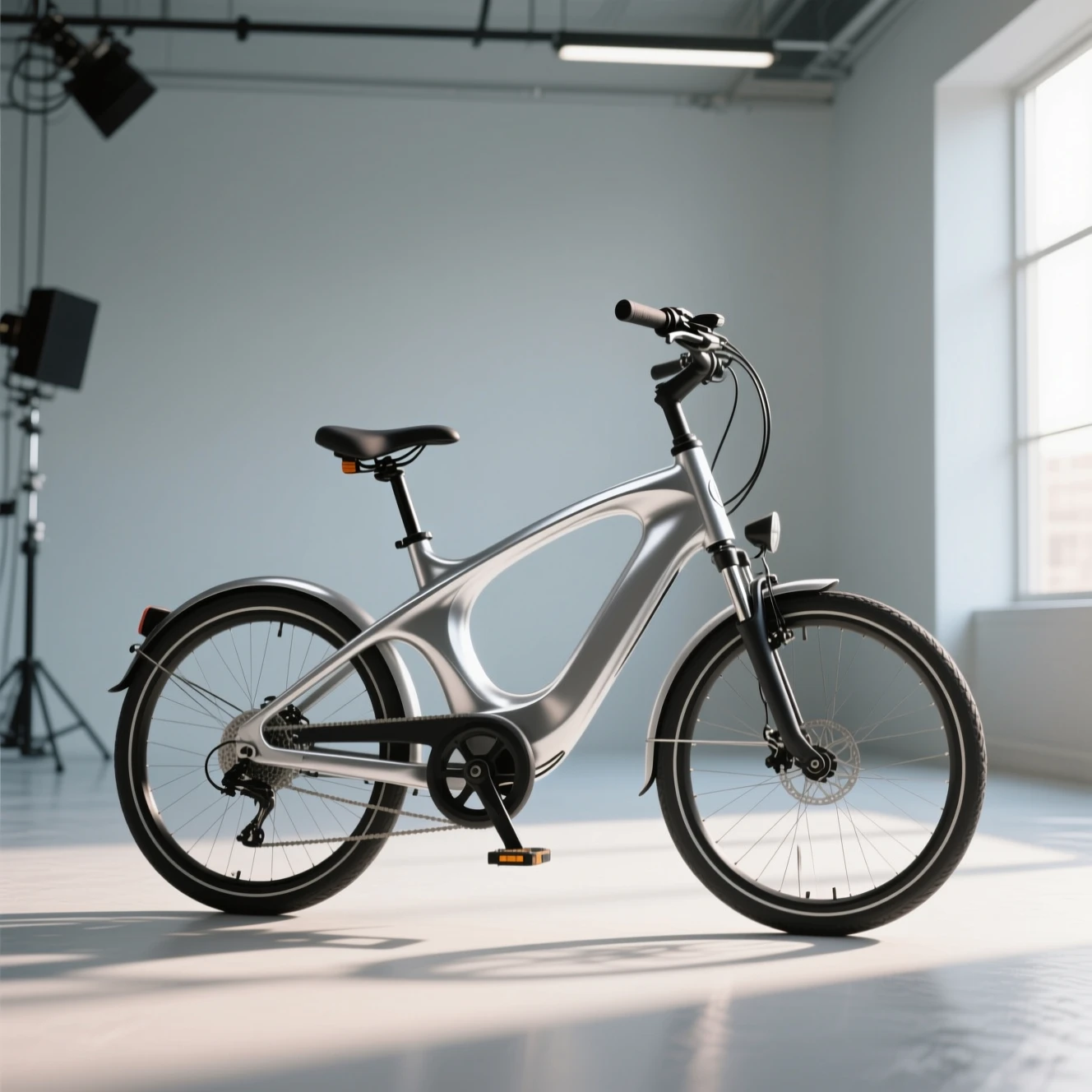
Electric bicycle campaign concept

Generated with MorphPix

Input

Commercial concept image of a compact electric commuter bicycle with a sculptural silver frame in a clean urban studio, directional morning light, premium mobility campaign, unbranded, no text, no logo

Prompt

Commercial AI concept image of a silver electric commuter bicycle in a studio
Output

Capability boundary: This is a visual concept, not an engineering drawing; frame geometry and components may not be mechanically viable.

Model
Qwen Image
Tool
AI Image Generator
Use in Studio

Best for

Landing page visuals

Ad creative concepts

Product moodboards

Social media images

Write prompts that produce usable images

A useful prompt gives the model visual decisions to follow without turning into a long list of conflicting instructions.

01

Start with the subject

Name the main subject and its important materials, colors, pose, or product details before describing the scene.

02

Add light and composition

Specify studio light, daylight, close-up, top-down, centered, or negative space when the layout matters.

03

Match the destination

Use 1:1 for square commerce and social assets, 16:9 for wide campaigns, and 9:16 for vertical content.

Recommended setup

The public page keeps the basic choices visible so visitors understand what will happen before they sign in.

Input

Prompt only

No upload needed for text-to-image generation.

Model stack

FLUX.2 Pro, Seedream 5.0 Pro, Seedream 4

AI models

Canvas

1:1

Default style: cinematic

How it works

1

Describe the subject, setting, lighting, composition, and visual style.

2

Choose a model and canvas ratio for the final channel.

3

Generate a version, compare the result, and download or refine the best image.

AI models

FLUX.2 Pro

Black Forest Labs

Core image tool

high-quality general image generation and reference-guided edits

Core image tool

reasoning-led generation, precise edits, text, and commercial design images

Seedream 4

ByteDance

Core image tool

fast generation, edits, and product-style visual variations

AI image generator FAQ

Which model does this use?

The studio can run supported image models such as Seedream 5.0 Pro, FLUX.2 Pro, and Seedream 4 while keeping the workflow flexible for model comparison.

Can I use it for commercial images?

The product is designed for commercial workflows, but final usage rights depend on the active image model terms.

How many details should an image prompt include?

Start with five decisions: subject, setting, lighting, composition, and style. Add exact colors or materials only when they matter to the result.

Can I edit a generated image afterward?

Yes. Download or reuse the result in the AI image editor, background remover, or upscaler for the next step.

Ready to run this workflow?

Open the studio with the prompt, model, style, and aspect ratio already filled in.

Generate image